Manage workspaces and team access
Create workspaces, invite registered members, configure roles, and manage access to individual boards.
Before you begin
Sign in, open a workspace, and use an account with permission to manage the relevant settings.
Planning your workflow
Choose workspace boundaries around team membership and access, not just a task category. A shared product team can keep several project boards in one workspace, while a separate client team may need its own workspace. Board membership then narrows project access within that workspace. A user's visible actions depend on both their workspace role and the board permissions resolved for the current project.
Use a Viewer role when someone needs project visibility without contributing changes. Add active contributors to the boards where they work so that they can be selected as task assignees and mentions. Review pending invitations and board membership when a project changes ownership. A readable identifier improves shared URLs, but changing it means previously shared addresses may no longer identify the same route.
Example
Keep Engineering and Design boards in a Product workspace. Add the release team to Engineering, and give a stakeholder Viewer access to the board they need to follow. Use the board member controls for board-role changes; workspace-role editing currently belongs to the API.
Step-by-step tutorials / 1
Set up workspace details
Create a workspace from the workspace list or select an existing one from the sidebar.
Open the workspace Settings tab to edit its name and description. Follow the field's save feedback before leaving.
If you need a readable address, edit the workspace identifier and use the save action next to that field. Correct any validation message.
What to expect: The workspace has recognizable details and a valid address.
Step-by-step tutorials / 2
Invite a member and give board access
Open the workspace Members tab. Use the invitation composer to search for an existing member.
Select the member and their intended workspace role, then submit the invitation. Review pending invitations and revoke outdated ones as needed.
After the member has joined, open Board settings → Members. Add the workspace member, choose a board role, and save the membership.
Use the board-members controls to update a board role or remove access when responsibilities change.
What to expect: Workspace membership and project access reflect the team's responsibilities.
Step-by-step tutorials / 3
Delete a workspace you own
Open the workspace and select Settings. Only the workspace owner sees Delete workspace.
Choose Delete workspace and review the confirmation, including the workspace name. All boards and tasks will be permanently removed for every member.
Cancel to keep the workspace, or confirm deletion. If the request fails, the dialog stays open with an error so you can retry. After success, you return to the workspace list.
What to expect: The deleted workspace no longer appears in the workspace list.
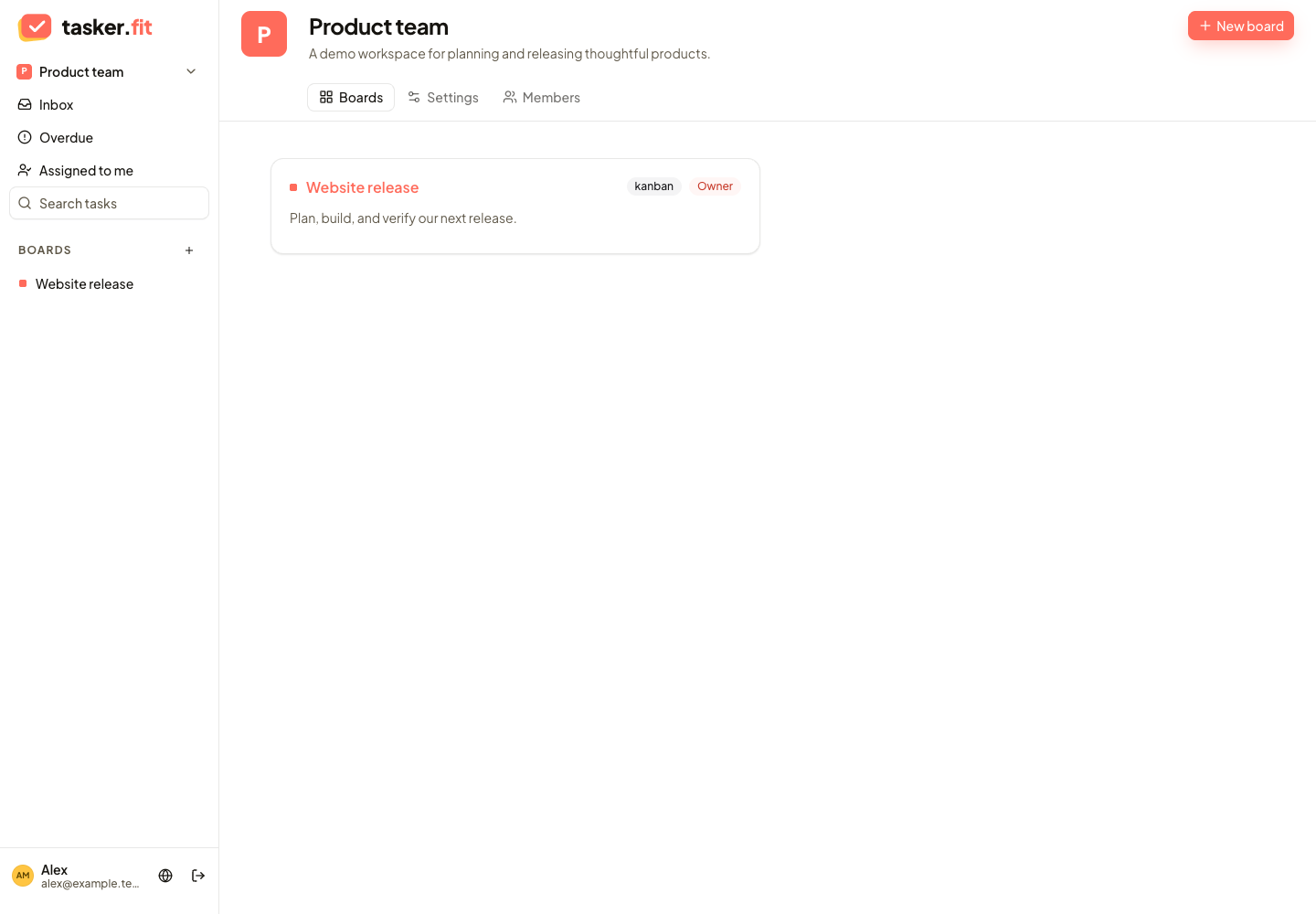
Workspace overview and project boards
Actual Tasker.fit interface with fictional demo data. No production customer data is shown.
Feature reference
Multiple workspaces
Organize separate companies, teams, or projects in distinct workspaces under one account. The workspace overview lists the workspaces available to the signed-in user.
Workspace creation
Create a workspace with a name and optional description. Each workspace becomes a container for boards and team membership.
Workspace switching
Switch between accessible workspaces from the application sidebar or return to the complete workspace list. Workspace navigation keeps each company's boards and task views together.
Workspace settings
Update a workspace's name and description from its settings screen. These settings are available to users with the appropriate workspace-management permissions.
Custom workspace identifiers
Set a readable workspace identifier used in its application URL. The settings form validates the identifier's length and allowed characters before saving it.
Workspace member directory
View workspace members, their usernames, email addresses, and roles. Access to the directory is restricted by the user's workspace role.
Workspace invitations
Find an existing registered member and invite them to a workspace with a selected role. Managers can view pending invitations and revoke them; the current frontend does not expose the recipient's accept/decline screen.
Role-based access control
Separate access using Owner, Admin, Project Manager, Member, and Viewer roles. Workspace and board permissions determine which users can manage settings, organize membership, edit tasks, or only view work.
Board-specific membership
Add workspace members to a board, change their board role, and remove board access. Board membership controls access to a particular project independently of the workspace member directory, subject to management permissions.
Read-only viewer access
Give users access to view boards and task information without granting task-editing permissions. The interface restricts task changes, comments, checklist edits, uploads, and reactions for viewers.
Tips & troubleshooting
- Invitations currently target existing registered members. Recipient acceptance and workspace-member role updates are API capabilities; their frontend screens are not available yet.
- Changing a workspace or board identifier changes its URL. Share the new address with your team after making the change.
Frequently asked questions
Can I invite someone who has not registered?
The current invitation composer searches existing registered members. Ask the person to register first, then select their account in the invitation search.
Why can a teammate see a board but not change a task?
Their resolved role may be Viewer or lack the required write permission. An authorized manager should review their workspace role and board membership.