Create, assign, and manage tasks
Write task descriptions, set priorities and deadlines, assign teammates, use tags, and share task links.
Before you begin
Open a board where you have permission to edit tasks. A Viewer can read content but cannot perform the editing steps.
Planning your workflow
A useful task describes an outcome rather than a vague activity. Put the action and subject in the title, explain context in the description, and write the conditions that would make the work acceptable. Task types distinguish delivery work from investigation, improvement, or a defect. Tags supply a different dimension, such as a component or customer area, without changing the workflow stage.
Assign the people responsible for completing the task and use comments for coordination. Start dates describe when work is planned to begin; due dates describe when it should be finished. A high priority is a statement about urgency, not a substitute for a deadline. Keep the number and direct link handy when discussing a task, because its title may change while teammates are working on it.
Example
Instead of Improve checkout, create Show a confirmation after successful payment. Describe the success message, assign the implementation and review owners, set a deadline, and add a Checkout tag. A linked bug task can track a separate failure rather than mixing both outcomes into the title.
Step-by-step tutorials / 1
Create a well-defined task
Use a column's task composer or the task-creation dialog. Enter an action-oriented name and choose the destination column.
Open the card and write the goal and acceptance criteria in its description. Use formatting, mentions, or pasted screenshots when useful.
Select a task type and priority. Add one or more board members as assignees, or use Assign to me from the card menu.
Set a start time or deadline and add relevant tags if those controls are enabled. Wait for changes to save.
What to expect: The task communicates the expected work, responsibility, and timing.
Step-by-step tutorials / 2
Update progress and share the task
Move the task to the next workflow column using drag and drop or its column field.
If completion checkboxes are enabled, set the completion state separately from the column.
Use the copy-link action and send the link to someone who already has board access. Enable task numbers when you need readable project references.
When the task is no longer active, use its archive action. Use deletion only when you intend to permanently remove it and confirm the dialog.
What to expect: Progress is visible and teammates can open the same task directly.
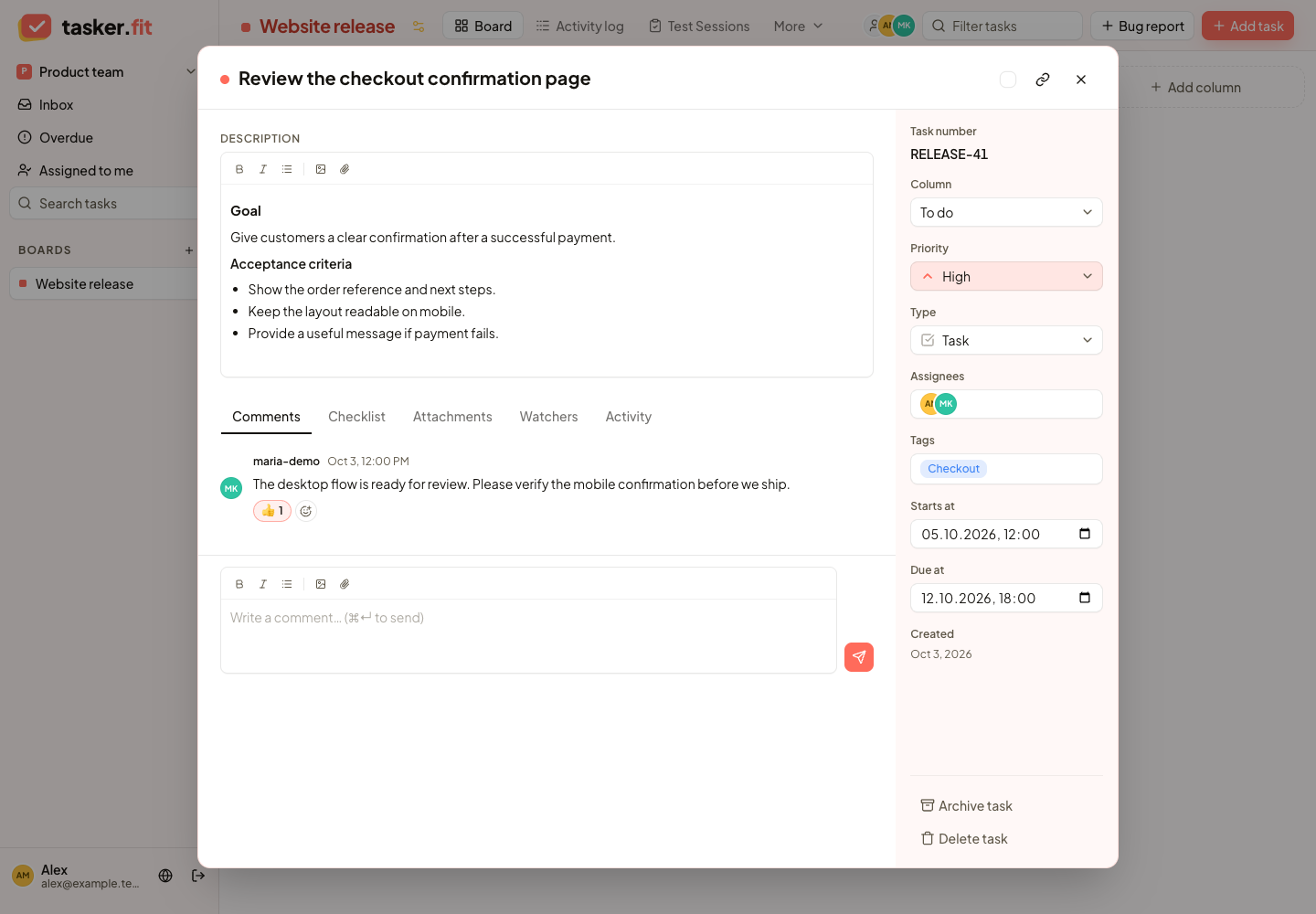
Task details and ownership
Actual Tasker.fit interface with fictional demo data. No production customer data is shown.
Feature reference
Quick task creation in a column
Add a task directly from a board column using its inline task composer. Enter a task name and create the card in the selected workflow stage.
Task creation dialog
Create a task through a dedicated dialog with a task name and destination column. When enabled on the board, the dialog also exposes completion and template-related controls.
Inline task editing
Edit task names and available task fields from the task-detail interface. Many fields save when changed or when the user leaves the field, with save feedback where provided.
Rich-text task descriptions
Write task descriptions with formatting, including bold text, italic text, and bullet lists. The editor also supports member mentions and uploaded content, while storing descriptions in a Markdown-compatible format.
Task types
Classify work as a Task, Bug, Research item, Improvement, or Story. Types distinguish different kinds of work on a shared board and can be used in workspace task filters.
Task priorities
Assign Low, Medium, High, or Urgent priority to communicate what needs attention first. Priority indicators, editing controls, and relevant filters appear when the board's priority feature is enabled.
Priority-colored task controls
Enable a priority-colored background on the task-detail priority selector to make the selected priority easier to identify. This display option is configured separately from enabling priorities themselves; it does not tint the entire task card.
Multiple task assignees
Assign one or more board members to a task and update its assignee list as responsibilities change. Assigned members are displayed on task cards and in task details.
Self-assignment shortcuts
Assign a task to yourself or remove yourself from its assignee list using the task-card menu. These shortcuts reduce the steps required to take ownership of work.
Task start dates and times
Set or clear a task's planned start date and time from its detail fields. Start information can also be used by the board's ordering options.
Task deadlines
Set or clear a task's due date and time to track deadlines. Due information is shown in relevant task views and feeds the workspace's overdue-task workflow.
Task completion checkboxes
Mark a task as completed or return it to an incomplete state using the board's optional completion checkbox feature. This completion control is separate from choosing a workflow column.
Human-readable task numbers
Enable task numbers to give cards readable board-based references. Numbered task references are displayed in task details and can be used by the application's task-link workflow.
Task archiving
Archive a task from its card menu or detail interface to remove it from active work. The current frontend exposes archiving but does not provide a dedicated archived-task restoration screen.
Task deletion
Delete a task through the task-detail confirmation workflow when the user has write permission. Deletion removes the task rather than simply hiding it from the active board.
Tips & troubleshooting
- A missing priority, tag, number, or completion control usually means its board feature is disabled. Ask a manager to enable it in Board settings → Features.
- Archive a task to remove it from active work. The current frontend has no dedicated restoration screen; deletion is a separate permanent action.
Frequently asked questions
Can one task have more than one assignee?
Yes. Select multiple board members in the assignee field. Make each person's responsibility clear in the description or discussion.
Does a copied task link give someone access?
No. The link opens the task only for an account that already has the required workspace and board access.