Manage test scenarios, cases, and QA sessions
Organize nested test scenarios, write cases, run sessions, report linked bugs, and review completed test results.
Before you begin
Enable QA in Board settings → Features. Your board needs a column with the To do workflow kind, and reviewers need task-writing permission.
Planning your workflow
Organize the test suite as a hierarchy of product areas. Scenarios group related cases; sub-scenarios make a large area manageable without duplicating its checks. Each case should specify repeatable steps and an observable expected result. A parent-scenario session includes descendant cases, so the hierarchy also defines the scope of a regression or release-validation run.
Keep case progress and defect tracking connected but distinct. Passed means a case matched its expected result; Bug means the run found a failure and recorded a linked task. Reviewing every case completes the session's review scope, even when some outcomes are bugs. Finishing the session does not itself claim those linked defects are fixed. Use the Bug tasks to track investigation and resolution, then start an appropriate later run for verification.
Example
Create Checkout with Payment and Delivery sub-scenarios. Add cases for accepting a valid card, rejecting an expired card, and selecting a delivery method. Start a Checkout session to include all three checks. Mark successful checks as passed, report the failed payment case, and follow its Bug task before a later verification run.
Step-by-step tutorials / 1
Build a test suite
Enable QA and open Board settings → QA setup. Create a top-level scenario such as Checkout.
Select the scenario and add sub-scenarios such as Payment and Delivery to organize related checks.
Select a scenario and choose Add test case. Fill in its title, description, reproduction steps, and expected result.
Use the scenario and case action menus to edit names or details. Review deletion confirmations because deleting a scenario also removes dependent QA data.
What to expect: Your suite contains organized, repeatable checks with explicit expected results.
Step-by-step tutorials / 2
Run a session and record failures
Open the board's Test Sessions tab and choose Start new session. Select a scenario; a parent includes cases from all descendant scenarios.
Start the session and open it from Active. Follow each case's steps and compare the observed result with its expected result.
Mark successful cases as passed. For a failure, select Report bug and enter the actual result, severity, and priority, then save the report.
Follow the Bug task link to investigate the failure, or the Session task link to inspect the session's Story task. Update an existing report from its case card if needed.
What to expect: Every reviewed case has an outcome, and failures are linked to actionable Bug tasks.
Step-by-step tutorials / 3
Finish and review the session
Check the session progress and review all remaining pending cases. A passed case can be reset to pending before finishing if it needs retesting.
Save or cancel any open report editor, then select Finish session when it becomes available.
Return to Test Sessions → Finished and open the completed session to inspect its read-only results.
What to expect: The completed run is available for review without further frontend edits.
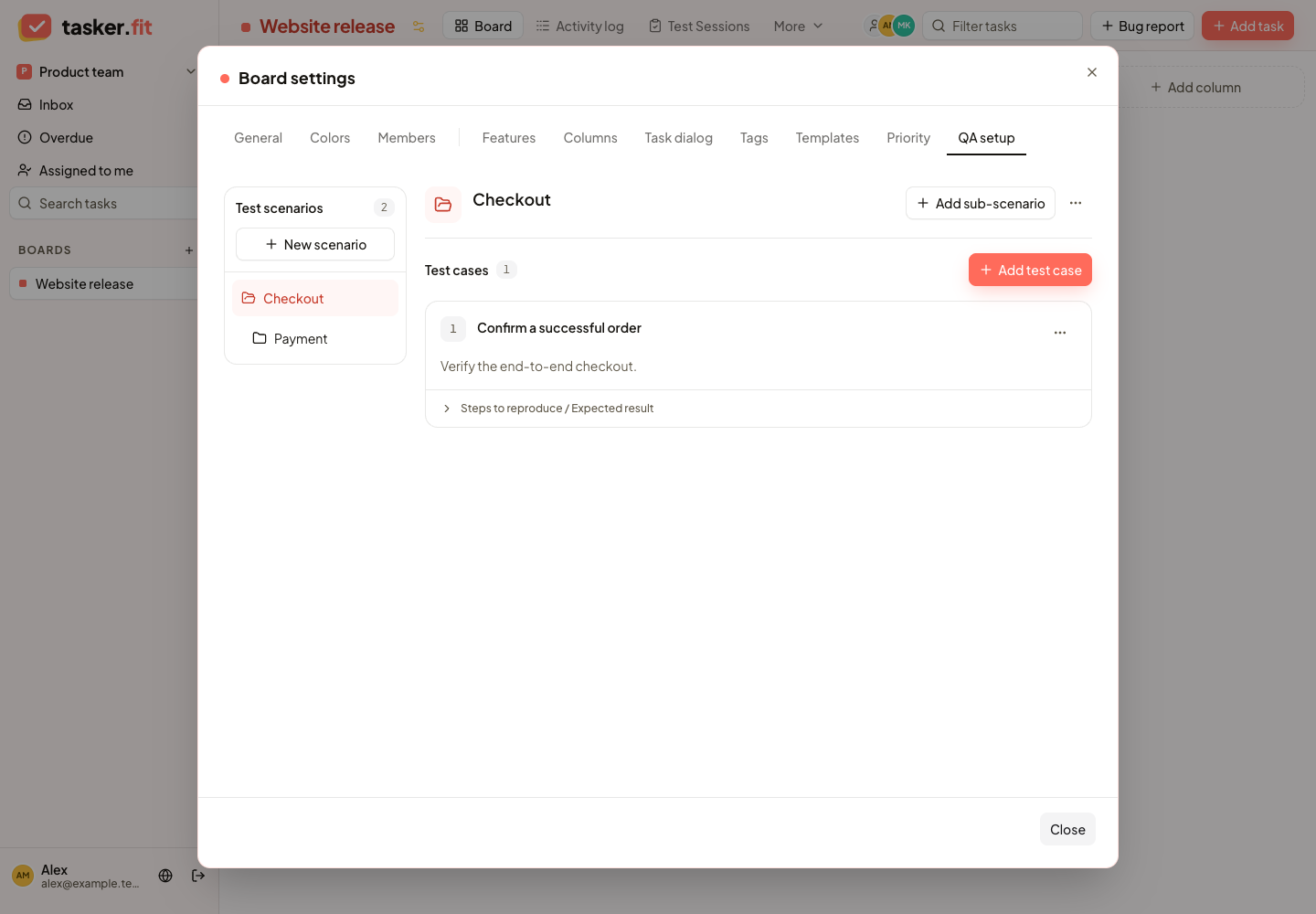
Scenarios and test cases
Actual Tasker.fit interface with fictional demo data. No production customer data is shown.
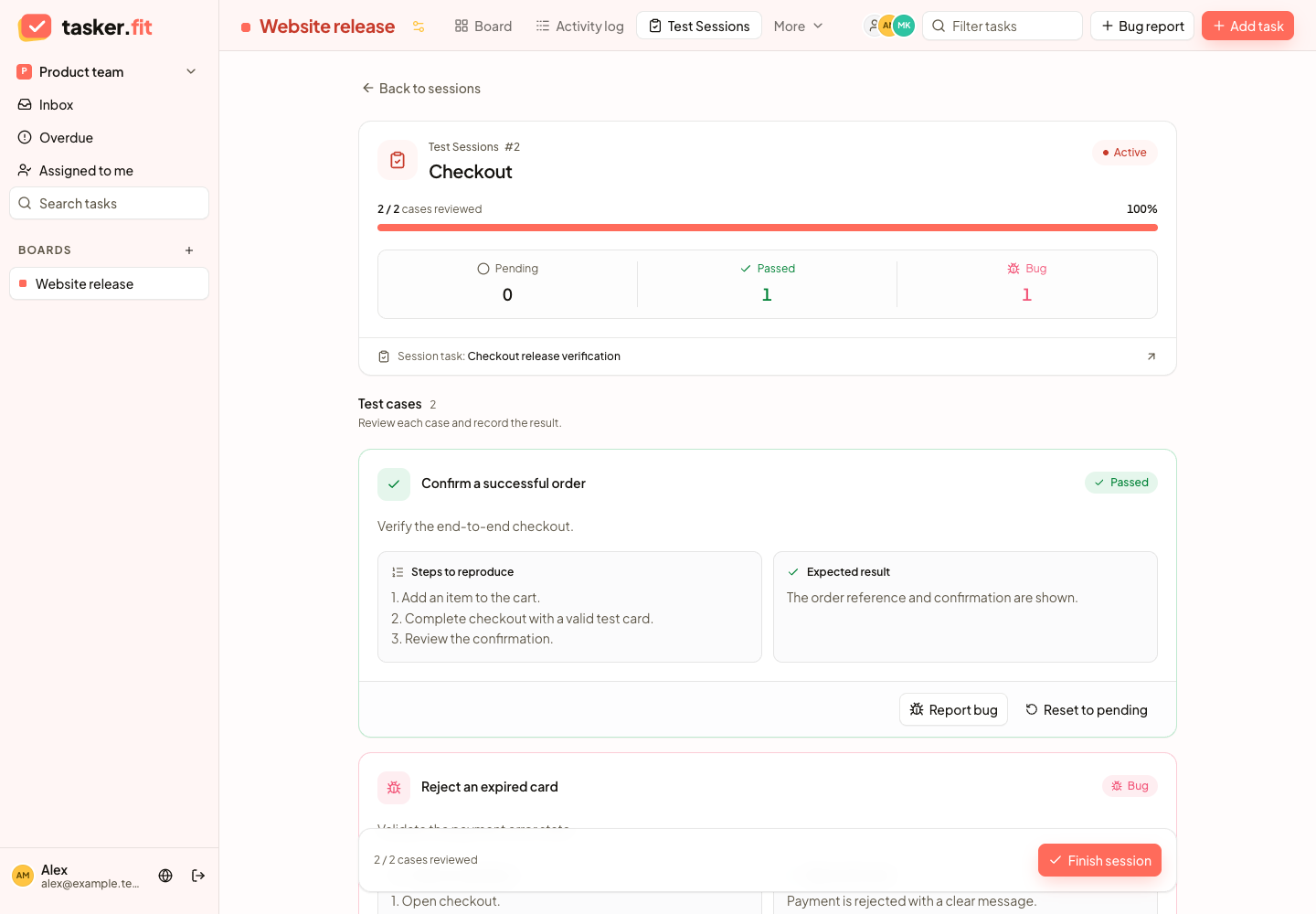
Review cases and report linked bugs
Actual Tasker.fit interface with fictional demo data. No production customer data is shown.
Feature reference
QA board feature
Enable QA features on a board to manage test scenarios, test cases, and testing sessions alongside project tasks. QA setup is available through board settings and the test-session workflow.
Test scenario management
Create, rename, or delete test scenarios to organize a board's test coverage. A scenario provides the container for test cases and related sessions.
Nested test scenarios
Create sub-scenarios under a parent scenario and navigate the scenario hierarchy. Hierarchical organization keeps related test areas together and makes larger suites easier to select.
Test case management
Create, edit, or delete test cases with a title, description, steps to reproduce, and expected result. These fields provide the instructions testers use when reviewing a case.
Start a test session
Select a scenario and start a testing session for its cases. Starting requires an eligible To Do column, and the backend creates a linked Story task to represent the session's work.
Include descendant scenario cases
Start a session from a parent scenario to include cases belonging to that scenario and its descendants. This supports testing a complete feature area without selecting each sub-scenario individually.
Active and finished session lists
Browse active test sessions separately from finished sessions. List entries show session identity, creation information, reviewed-case counts, and bug counts where applicable.
Session progress dashboard
Track the number and percentage of reviewed cases in a session. The session summary separates Pending, Passed, and Bug outcomes to show what remains and what needs follow-up.
Record and reset test outcomes
Mark a case as passed or reset a passed case to pending. Session controls also allow a bug outcome to be replaced by a passed result when the tester records the new outcome.
Report bugs from a test session
Report a failed case by entering its actual result, severity, and priority. The bug workflow creates a linked bug task, and an existing bug report can be updated from the case card.
Linked session and bug tasks
Open the Story task associated with a test session or the Bug task associated with a reported failure. These links connect QA results to the board's regular task-management workflow.
Finish a test session
Complete a session after every case has been reviewed and any open bug-report draft has been saved or canceled. The interface also offers a way to close an empty session.
Finished-session review
Open a finished session to inspect its results in a read-only view. The session's finished state prevents further review actions through the frontend.
QA cleanup controls
Delete scenarios or test cases through confirmation dialogs in QA settings. Scenario deletion explains its effect on descendant scenarios, cases, and associated sessions; case deletion explains its effect on session reports.
Tips & troubleshooting
- If starting is blocked, verify that a column has the To do kind, not merely the name To do. Add cases before starting a session; an empty session can be closed but does not verify test coverage.
- If Finish session is disabled, review every pending case and save or cancel any open bug-report draft. Completed sessions are read-only in the frontend.
- If a session says it is unavailable, return to Test Sessions on the same workspace and board and reopen it from Active or Finished. Check access and retry before assuming the session was deleted.
Frequently asked questions
Why is Start unavailable even though my column is called To do?
The column must have the To do workflow kind. Open Columns settings and check its kind; changing the display name alone does not set the semantic status.
Can I finish a session that contains reported bugs?
Yes, after every case is reviewed and open bug drafts are saved or canceled. A recorded Bug result counts as reviewed. The linked bug remains a separate task to investigate.
Can I edit results after finishing?
The frontend presents finished sessions as read-only. Review them from Finished and use a new session for a subsequent testing run.