Get started with Tasker.fit
Create your first workspace, organize a Kanban board, and assign your first task in Tasker.fit.
Before you begin
Use an email address you can verify. You can start with a new account or sign in to an existing one.
Planning your workflow
Start with one board for a concrete process, such as a product release, client onboarding, or an editorial schedule. A board works best when its columns describe observable stages rather than departments. For example, Backlog, In progress, Review, and Done show how work advances. Give each column the workflow kind that matches its purpose, even if you use a custom name.
Keep the first task small enough to complete and specific enough that another teammate understands the outcome. Write an action in the title, put background and acceptance criteria in the description, and choose the people responsible for the work. Dates, priorities, and tags add structure after the basic workflow is clear; enabling every optional feature at once is unnecessary.
Example
For a website launch, create a Website release board. Add a task named Review the checkout confirmation page, assign a reviewer, and describe the expected confirmation message. Move it through your workflow as the review progresses.
Step-by-step tutorials / 1
Create an account and a workspace
Open Get started, complete the registration form, and submit it. If you already have an account, use Sign in.
Complete email verification with the code sent to your inbox. If prompted for a CAPTCHA or authenticator code, complete that step too.
Open the workspace overview at /app and choose the create-workspace action. Enter a name such as Product team and an optional description.
What to expect: Your workspace appears in the overview and sidebar, ready for a project board.
Step-by-step tutorials / 2
Create and complete your first task
Open the workspace and create a board. Choose a name and color, then open it.
In Board settings → Columns, set up To do, In progress, and Done stages and select their matching workflow kinds.
Use the task composer in To do to create a task. Open its card, add a description, assign a board member, and set a due date if needed.
Drag the card into In progress when work begins and into Done when the workflow step is complete. If the completion-checkbox feature is enabled, update that checkbox separately.
What to expect: You have a task with an owner, clear instructions, and a visible workflow stage.
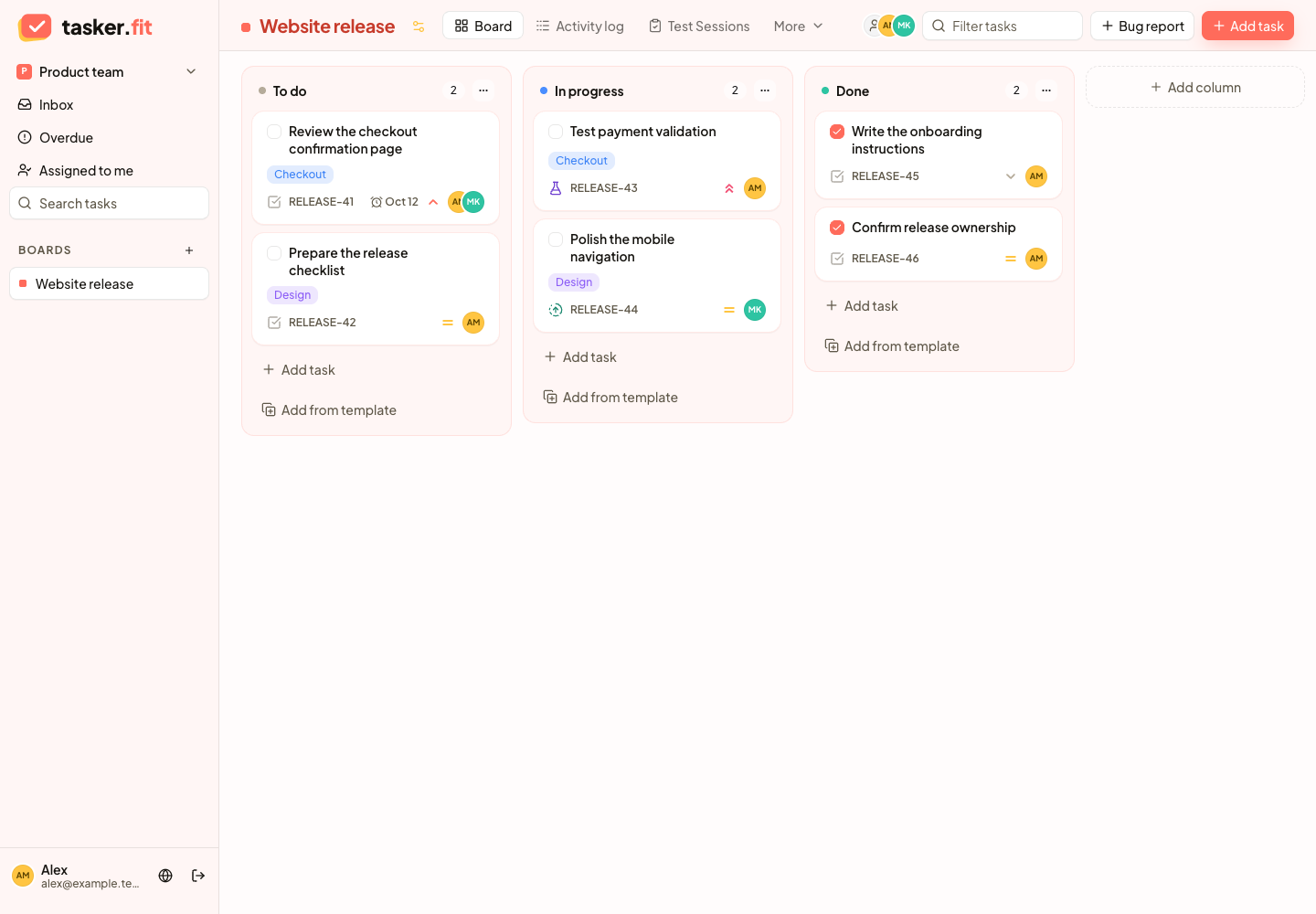
A Kanban board with assigned tasks, priorities, and tags
Actual Tasker.fit interface with fictional demo data. No production customer data is shown.
Tips & troubleshooting
- A workspace contains boards; a board contains columns and tasks. Use separate workspaces when different teams need separate membership.
- Extra controls such as tags, templates, completion checkboxes, task numbers, and QA appear after a manager enables their board feature.
Frequently asked questions
What is the difference between a workspace and a board?
A workspace groups team membership and multiple projects. A board is one project's workflow, with columns, tasks, and board-specific feature settings.
Does moving a task to Done automatically replace its completion checkbox?
The completion checkbox is a separate optional control. Update the workflow column and completion state deliberately rather than assuming they are the same field.