Create reusable task templates
Build a board template library, use variable placeholders, preview content, and create tasks from templates.
Before you begin
A board manager must enable Templates in Board settings → Features. Creating tasks from templates requires task-writing permission.
Planning your workflow
Templates are most useful for repeated work with a stable structure, such as onboarding, deployment reviews, content publishing, or release checks. Put the instructions that remain constant in the template and make only the changing values into variables. Clear variable names such as version, customer, or environment are easier to fill than ambiguous names such as value1.
A template can carry checklists as well as task content, so a new task can start with a complete execution plan. Preview the substituted content before creating the task, especially when the same variable appears in several places. Updating a template improves future task creation; inspect already-created tasks separately instead of assuming their content is automatically rewritten.
Example
Create a Release {{ version }} template with a description for {{ environment }} and checklist items for smoke testing, approval, and deployment. When creating the task, enter 1.2 and staging, inspect the preview, and place it in the release board's To do column.
Step-by-step tutorials / 1
Build a reusable template
Open Board settings → Features, enable Templates, and open the Templates settings tab.
Create a template and fill in its task content. Add checklists for steps that every new task should contain.
Use placeholders such as {{ version }} in the name, description, checklist name, or checklist items wherever the value changes between tasks.
Finish editing the template. Configure its column shortcut below or beside the task-creation control if desired.
What to expect: The board has a reusable task structure with task-specific variables.
Step-by-step tutorials / 2
Create a task from a template
Choose Add from template in a column or use the template controls in the creation dialog.
Select a template and destination column. Enter values for its detected variables, such as version 1.2 and environment staging.
Inspect the preview, create the task, and open it to verify its generated content and checklists.
What to expect: The new task contains the template's content with your supplied values.
Example
Release {{ version }}

Verify the release for {{ environment }}.

Checklist: Release checks for {{ version }}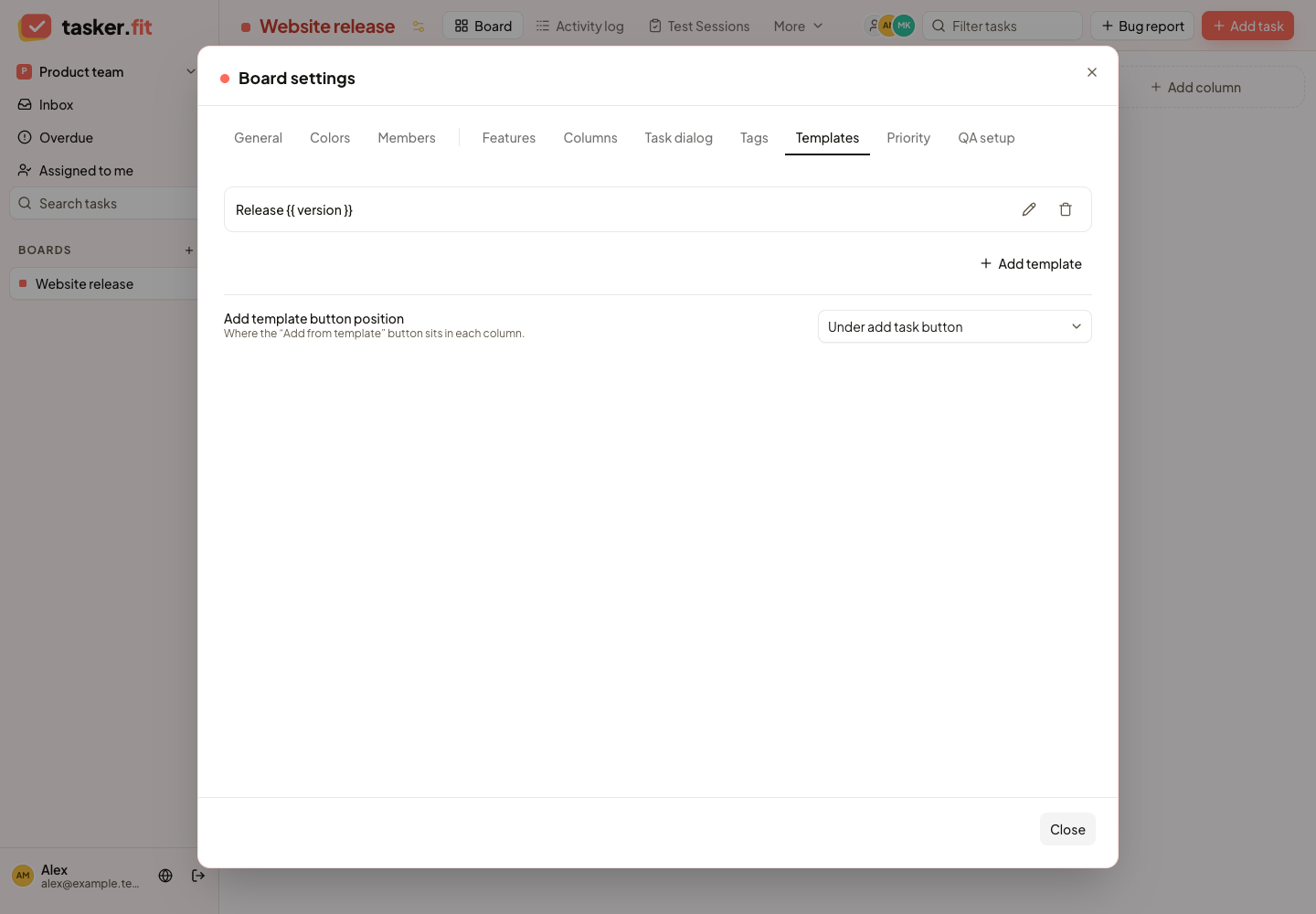
Reusable release-check templates
Actual Tasker.fit interface with fictional demo data. No production customer data is shown.
Feature reference
Board task template library
Create, edit, and delete task templates from board settings. Templates provide reusable task content and supported task details for repeated types of work.
Create tasks from templates
Select a template and a destination column to create a new task from predefined content. The backend also copies supported template details and checklist structures into the new task.
Template variables
Use `{{ variable }}` placeholders in template names, descriptions, checklist names, and checklist items. Users supply values when creating a task, allowing the same template to produce task-specific content.
Template preview
Preview the selected template and entered variable values before creating a task. This lets users check the content they are about to add to the board.
Template creation shortcut placement
Choose whether the “Add from template” control sits below or beside the task-creation control in a column. The setting helps teams adapt frequently used template actions to their board layout.
Tips & troubleshooting
- Templates create tasks when a user chooses them. They do not automatically schedule recurring tasks.
Frequently asked questions
Where can variables be used?
Detected placeholders are supported in template names, descriptions, checklist titles, and checklist-item names. Supply values in the create-from-template dialog.
Can a template run automatically every week?
The current template workflow is initiated by a user. A recurring-task scheduler is not implemented in the reviewed app.