Collaborate with comments, files, and checklists
Mention teammates, add attachments and reactions, track checklist progress, and review task or board activity.
Before you begin
Open a board where you have permission to edit tasks. A Viewer can read content but cannot perform the editing steps.
Planning your workflow
Keep discussion close to the task so decisions can be understood later without searching a separate chat. A useful comment says what changed, what remains uncertain, and what response is needed. Mention a board member when the comment is directed to them. Use a screenshot or file to make an issue concrete, and a reaction when an acknowledgment is enough.
Use checklists for small verification or execution steps that share a task's context. A checklist percentage describes item completion, not necessarily readiness to ship or the task's workflow status. Create separate lists when implementation and review have different steps. Task activity records supported edits, while the board activity view helps managers inspect changes across multiple tasks.
Example
For a release review, add an Implementation checklist and a Verification checklist. Attach a screenshot of the confirmation screen, mention the reviewer in a comment, and mark each verified condition independently so the next person can see what has actually been checked.
Step-by-step tutorials / 1
Discuss a task with supporting evidence
Open a task's Comments module. Write an update and type @ to select a board member from the mention suggestions.
Paste a screenshot or use the editor's upload controls for images and files. Submit the comment once the content is ready.
Use a comment's reaction control to acknowledge it. Its available actions also let authorized users edit or delete the comment.
For task-level files, open Attachments, upload a file, and check its name and link. Remove the task association only if it is no longer needed.
What to expect: Discussion and evidence remain attached to the task they concern.
Step-by-step tutorials / 2
Break work into a checklist and review changes
Open Checklists, create a named list, and add one item for each concrete step.
Rename items as needed and mark completed steps. Read the completed count and percentage to track progress.
Open the task's Activity module to inspect recorded changes and their authors. Managers can open the board's Activity view for a broader history.
In board activity, use search or actor filters and page controls to find relevant entries, then follow the related-task link.
What to expect: The team can see both the remaining steps and the history of changes.
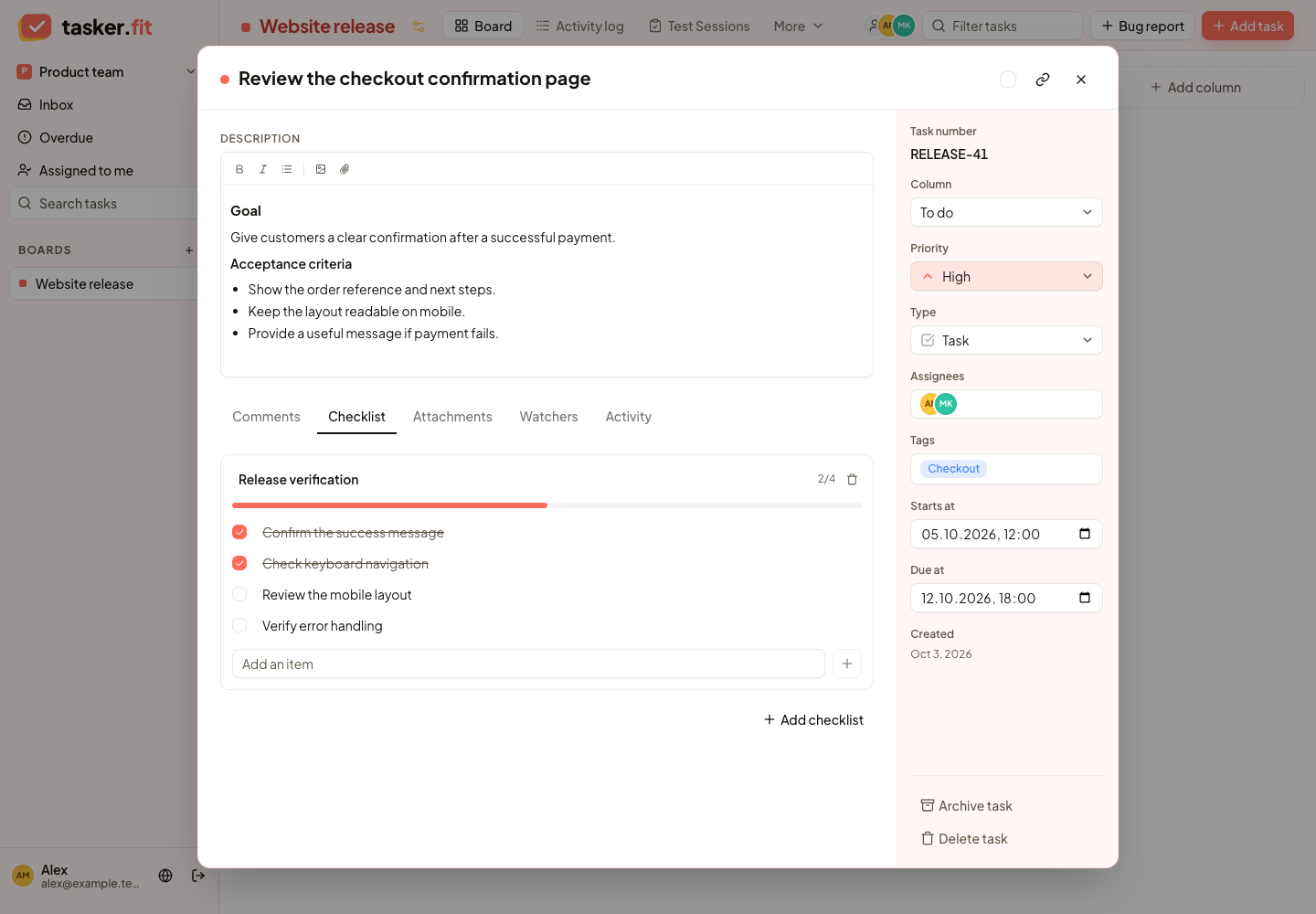
Checklists inside a task
Actual Tasker.fit interface with fictional demo data. No production customer data is shown.
Feature reference
Task comments
Discuss work in a task's comment thread with author information and timestamps. Comments use the rich-text editor and can include mentions, images, and attached files.
Member mentions
Use @ mentions to reference board members in descriptions and comments. Mention suggestions help users select a member, and saved mentions are rendered as identifiable member references.
Task watcher visibility
View a task's assignees and additional watchers in its Watchers module. Task-description mentions provide the documented way to add watchers; the current UI does not expose a general subscribe/unsubscribe button.
Comment reactions
Add or remove emoji reactions on task comments. Reaction groups display counts and provide a lightweight way to acknowledge or respond to a discussion.
Task file attachments
Upload files to a task, view attachment names, sizes, and uploaders, and open available file links. Users with the appropriate permissions can remove an attachment's association with the task.
Inline images and files
Insert uploaded images or files directly into task descriptions and comments. Inline rendering keeps visual evidence and related documents alongside the discussion or instructions they support.
Clipboard image uploads
Paste an image into the rich-text editor to upload and insert it into the content. This supports sharing screenshots without first saving them and selecting them through a file picker.
Comment image previews
View images and file cards attached to comments. The comment components resolve uploaded attachment content and display images inline alongside the discussion.
Multiple task checklists
Add named checklists to a task to break work into smaller steps. Checklists can be renamed or deleted, and each list can contain its own set of items.
Checklist item management
Add, rename, complete, or delete checklist items. Item completion states keep detailed work steps visible without creating separate task cards.
Checklist progress
See how many items in a checklist are complete and view its completion percentage. Progress updates reflect the current item states.
Task activity history
Review changes to a task in its Activity module, including supported edits to status, assignment, tags, attachments, comments, and checklist items. Entries identify the actor and time and show change details where supplied by the API.
Board activity history
Review task-related changes across a board in a dedicated activity view. Managers can search activity, filter it by actor, browse paginated results, and open related tasks from the history.
Tips & troubleshooting
- If a module is missing, a board manager can place it in Top or Tabs using the task-dialog layout editor.
- Mentions and watchers feed the Inbox. There is no general watch/unwatch button or read/unread notification workflow in the current UI.
Frequently asked questions
Can I paste a screenshot directly into a comment?
Yes. The rich-text editor supports pasted images, uploads them, and inserts them into the content. Wait for the upload before submitting.
Does removing an attachment delete its stored file?
The task interface removes the attachment association. It should not be treated as a guarantee that the stored file has been deleted from every location.
Comment editing and deletion
Edit existing comments or remove them through the available comment actions, subject to permissions. Updated comments display an edited indicator when their update timestamp differs from their creation timestamp.