Subscriptions, support, and language settings
Compare current subscription plans, review usage, contact support, request features, and switch interface language.
Before you begin
Sign in for subscription and support screens. Public product and legal pages do not require an account.
Planning your workflow
Review a subscription using the information returned for your account rather than a remembered marketing price. A plan comparison combines its billing period, features, and limits; usage cards show the consumption values supplied by the subscription API. The selected checkout is handled by the configured payment provider, so inspect the provider's summary before submitting payment.
Choose a support ticket when you need help with the product or want to report a problem in Tasker itself. A board Bug task, by contrast, tracks a defect in your team's project. Describe a support problem with the affected screen and reproducible steps. A feature request is most useful when it explains the job you are trying to complete and what part of the current workflow prevents it.
Example
If a Tasker test session fails to open, submit a support ticket with the workspace/board context, session number, and steps leading to the message. If the tested checkout in your own project fails, report it as a board or QA Bug task instead.
Step-by-step tutorials / 1
Review or change a subscription
Open Profile → Subscriptions and review the current-plan marker and usage cards.
Compare the API-supplied plan features, limits, prices, and billing period. Select a different plan if it meets your needs.
Follow the checkout URL opened by the app and review the payment provider's details before completing payment. Return to Subscriptions to check the account's plan.
What to expect: You can compare available plans using current account information.
Step-by-step tutorials / 2
Contact support or request a feature
Open the Tasker.fit area and select Support. Choose the ticket type and describe your question, bug, or feedback.
For a bug, include the affected screen, steps, and observed behavior. Submit the ticket and inspect your ticket list for a response later.
To propose a board feature, use Request a feature in a column menu and submit a concrete description of the intended workflow.
Use the language selector to change the interface between English and Ukrainian. Open the public legal pages when you need privacy, cookie, or terms information.
What to expect: Your request is recorded and available with any supplied support answer.
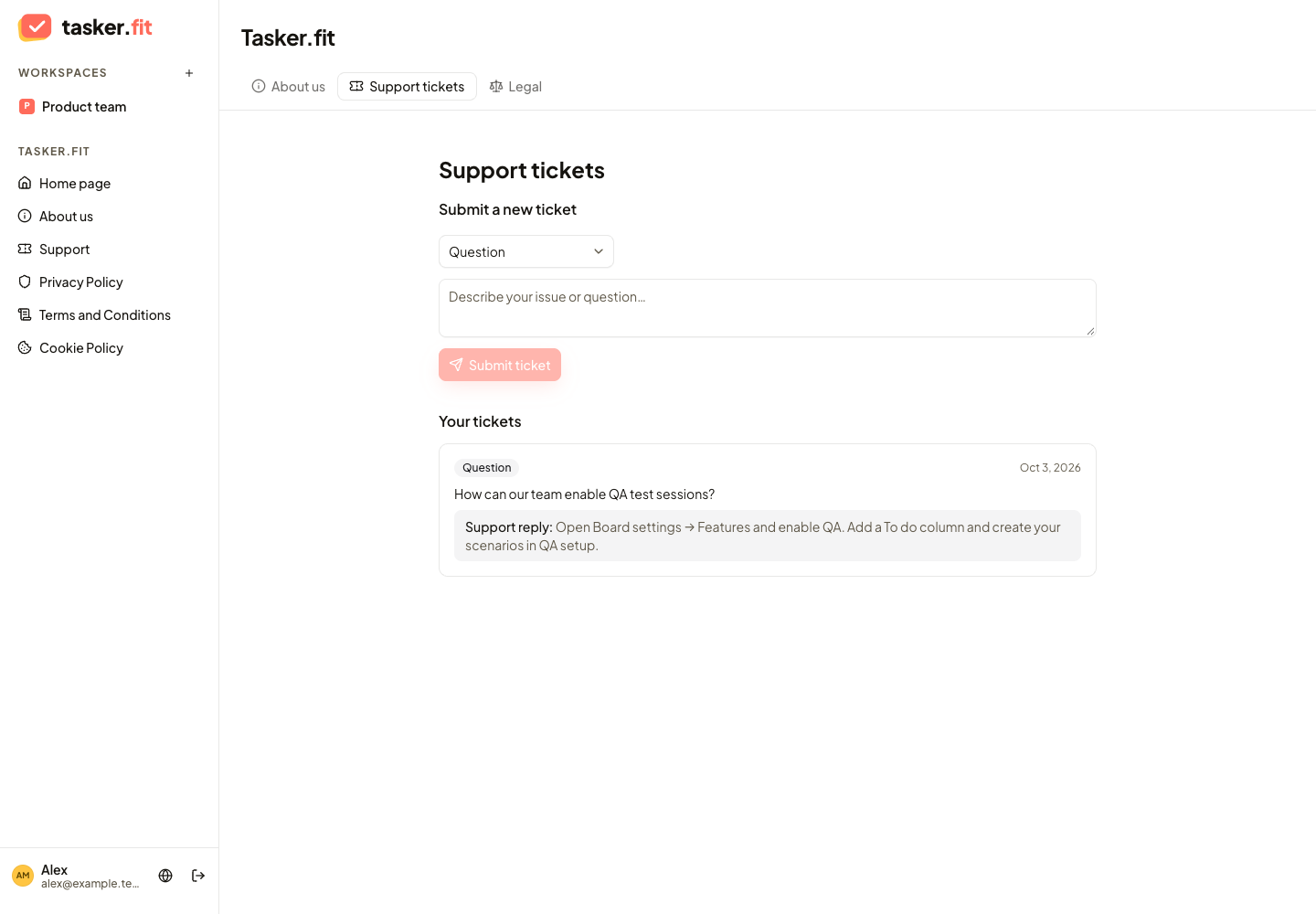
Support requests and responses
Actual Tasker.fit interface with fictional demo data. No production customer data is shown.
Feature reference
Subscription plan comparison
View the tariff plans returned by the subscription API, including their supplied prices, billing periods, features, and limits. The account's current plan is marked in the comparison.
Subscription usage overview
View the usage values returned for the account's current subscription. Usage cards help users understand their account's consumption alongside available plans.
Subscription upgrade checkout
Select a different plan and open the checkout URL returned by the payment API. The checkout flow depends on the configured payment provider; documentation should use the current API-backed plan information rather than old marketing prices.
Support tickets
Submit a question, product bug report, or feedback message from the Support section. Users can view their submitted tickets and the support answer where one has been provided.
Feature requests
Send a feature request from the board-column menu. The feature-request dialog submits the message through the support-ticket workflow as feedback.
English and Ukrainian interface
Switch the application's interface between English and Ukrainian. The language selection is stored locally and applied through the application's translation provider.
Public product overview
Visit the public home page to read the product introduction, view the feature presentation and sample layouts, and explore plan information. Sample boards, lists, and calendars are demonstrations rather than proof that all displayed layouts are implemented in the authenticated app.
Public search-engine metadata
The public site provides page metadata, social-sharing images, a sitemap, robots rules, and structured data. Existing robots rules exclude the authenticated app and account-access routes; a future public documentation route would need its own content and indexing setup.
Web application manifest
The site supplies a manifest with application identity, icons, colors, and standalone display settings. This is a web-app manifest, not evidence of offline operation or native mobile/desktop applications.
Tips & troubleshooting
- Use the live subscription screen for current prices and limits. Payment history and cancellation/disable operations exist in the API but have no complete frontend workflow.
- Documentation has separate English and Ukrainian URLs. Use the guide's language links to switch to the same topic; the app's language selector changes the application interface.
Frequently asked questions
Where should I check current prices and limits?
Open Profile → Subscriptions and review the API-backed plan cards and usage. Static marketing copy may differ from current account plan information.
Does changing the app language also change a documentation URL?
Documentation languages use separate URLs. Use English or Українська inside the documentation to open the same guide in the other language.