Connect API tokens and MCP clients
Create integration tokens, configure an MCP client, and discover the implemented task and comment tools.
Before you begin
Sign in and open Profile. Use an MCP-compatible client for MCP access or a developer client for API and Python SDK access.
Planning your workflow
API tokens let an integration authenticate without using the browser's interactive sign-in flow. Give each integration a descriptive token name so you can identify and revoke it later. Expiration and active-state controls help manage the lifetime of access. A token still acts under the account's permissions; it is not a way to bypass workspace membership or project access restrictions.
MCP gives a compatible assistant a defined set of tools rather than unrestricted application control. Discover the workspace, board, and columns first so subsequent actions use the correct identifiers. Retrieving assigned tasks can provide work context; a column change updates workflow status; a comment records an update in the task discussion. Check the client configuration and tool list before relying on any operation beyond these implemented capabilities.
Example
Ask a connected client to list your workspace's boards, retrieve your high-priority tasks on the release board, and add a plain-text progress comment to a selected task. If you want to move the task, discover the destination column ID before requesting the status change.
Step-by-step tutorials / 1
Create and manage an integration token
Open Profile → API Tokens and create a named token, such as Development assistant.
Set its active state and optional expiration date, then copy the token into your client's private credential configuration.
Return to the token list to rename it, change its exposed settings, deactivate it, or delete it when access is no longer required.
What to expect: Your client has a credential you can deactivate or revoke independently.
Step-by-step tutorials / 2
Connect and use an MCP client
Open Profile → MCP and copy the endpoint. Add it as an HTTP MCP server in your client's server configuration.
Configure Authorization: Bearer <your-api-token> using the token you created. The exact configuration field names depend on your client.
List companies, then boards, then board columns. Use the returned IDs for assigned-task retrieval or task-column changes.
Use the comment tools to read discussion or add a plain-text update to a task. Review the resulting change in the app.
What to expect: The MCP client can work with the supported tools under your account's permissions.
Example
MCP endpoint: https://tasker.fit/api/mcp/
Authorization: Bearer <your-api-token>

companies_list → boards_list → board_columns_list
my_board_tasks
task_column_change
task_comments_list
task_comment_create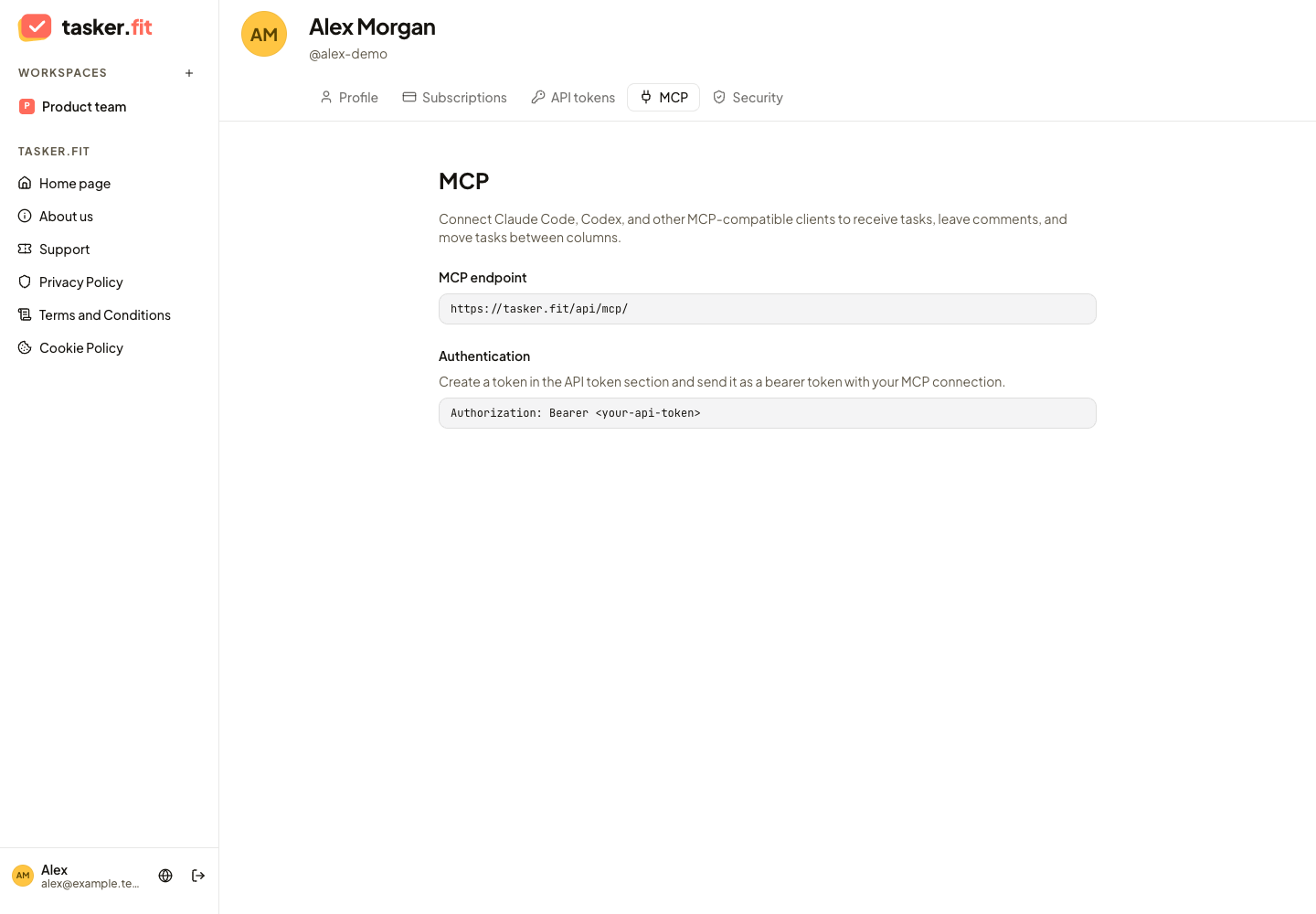
MCP endpoint and authentication instructions
Actual Tasker.fit interface with fictional demo data. No production customer data is shown.
Feature reference
API bearer tokens
Create named bearer tokens for API integrations and MCP clients. The profile interface lists tokens and supports copying a token for use in an integration.
Token activation and expiry
Activate or deactivate tokens and configure an optional expiration date. Token settings let users control whether an integration credential can still be used and how long it remains valid.
Token editing and revocation
Rename tokens, change their exposed settings, or delete a token when it should no longer be used. The deletion confirmation explains that the credential will stop working.
MCP client connection
Connect an MCP-compatible client using the documented Tasker.fit MCP endpoint and a bearer token. The profile includes connection and authentication guidance for clients such as Claude Code and Codex.
MCP workspace and board discovery
Use the implemented MCP tools to list accessible workspaces, boards, and board columns. These tools provide the identifiers needed to locate work and select a destination workflow column.
MCP assigned-task retrieval
Retrieve tasks assigned to the authenticated member within a selected board. The tool supports its exposed search, priority, type, and pagination options.
MCP task status changes
Move a task to another board column through the implemented MCP task-column tool. This enables a connected client to update workflow status using Tasker's existing task API.
MCP task comments
Read a task's comments or create a plain-text comment through the implemented MCP tools. These actions keep client-assisted work connected to the task's discussion history.
Python SDK
Use the adjacent Python SDK to access supported Tasker API operations through typed models and service methods. The SDK includes pagination helpers and operations for workspaces, boards, tasks, comments, checklists, attachments, account tokens, invitations, and subscriptions.
Tips & troubleshooting
- Treat bearer tokens like passwords. Keep them out of public code, documentation screenshots, and shared chat logs. Revoke tokens you no longer use.
- The implemented MCP tools cover discovery, assigned tasks, column changes, and comments. General task creation is not currently an MCP tool.
Frequently asked questions
Why does the MCP client reject my token?
Check that the token is active, unexpired, and supplied in the Bearer authorization header. Use the endpoint including its /api/mcp/ path and your client's supported HTTP transport.
Can MCP create any kind of task?
General task creation is not one of the implemented MCP tools. Use the web task-creation workflow or an appropriate API/SDK operation instead.