Configure boards and Kanban workflows
Create project boards, customize columns and ordering, enable features, and arrange the task-detail layout.
Before you begin
Sign in, open a workspace, and use an account with permission to manage the relevant settings.
Planning your workflow
Design a Kanban workflow around decisions the team actually makes. A task leaving In progress for Review should mean that work is ready for someone else's verification. Column names communicate that process to people, while column kinds provide the application's semantic status. A Review column can use a Custom kind, and a Completed column can use the Done kind without needing the literal name Done.
Task ordering changes how a column prioritizes its cards. Choose priority or due date when reviewing urgent work, and position when manual card arrangement matters. Vertical drag reordering is persisted when the board orders by position; with another ordering, the sort rule determines the arrangement. Enable tags, templates, and QA only when they serve a clear process, and place frequently used task modules where the team can reach them quickly.
Example
A release board can use Planned → Building → Verification → Released. Set the first column to To do and the last to Done, keep Verification as a distinct stage, enable QA, and sort by due date during the release review.
Step-by-step tutorials / 1
Build your workflow
Open a workspace and create a board with a name, optional description, and color.
Open Board settings → Columns. Add or rename stages and select each column's workflow kind.
Drag columns into the desired order. Select a task-ordering option and, if helpful, enable full-height columns.
Return to the board and drag a task between stages to check that the workflow suits your team.
What to expect: Columns and card ordering follow your team's workflow.
Step-by-step tutorials / 2
Enable features and arrange task details
Open Board settings → Features and turn on the tools your board needs, such as tags, templates, task numbers, or QA.
Use the corresponding settings tabs for tags, templates, priority display, or QA setup when they become available.
Open Task dialog settings and drag modules into Top, Tabs, or Hidden. Reorder modules to prioritize the information your team uses most.
Open a task to inspect the resulting layout. Use General and Colors settings to update the board's identity or status.
What to expect: Your board shows the features and task modules your team needs.
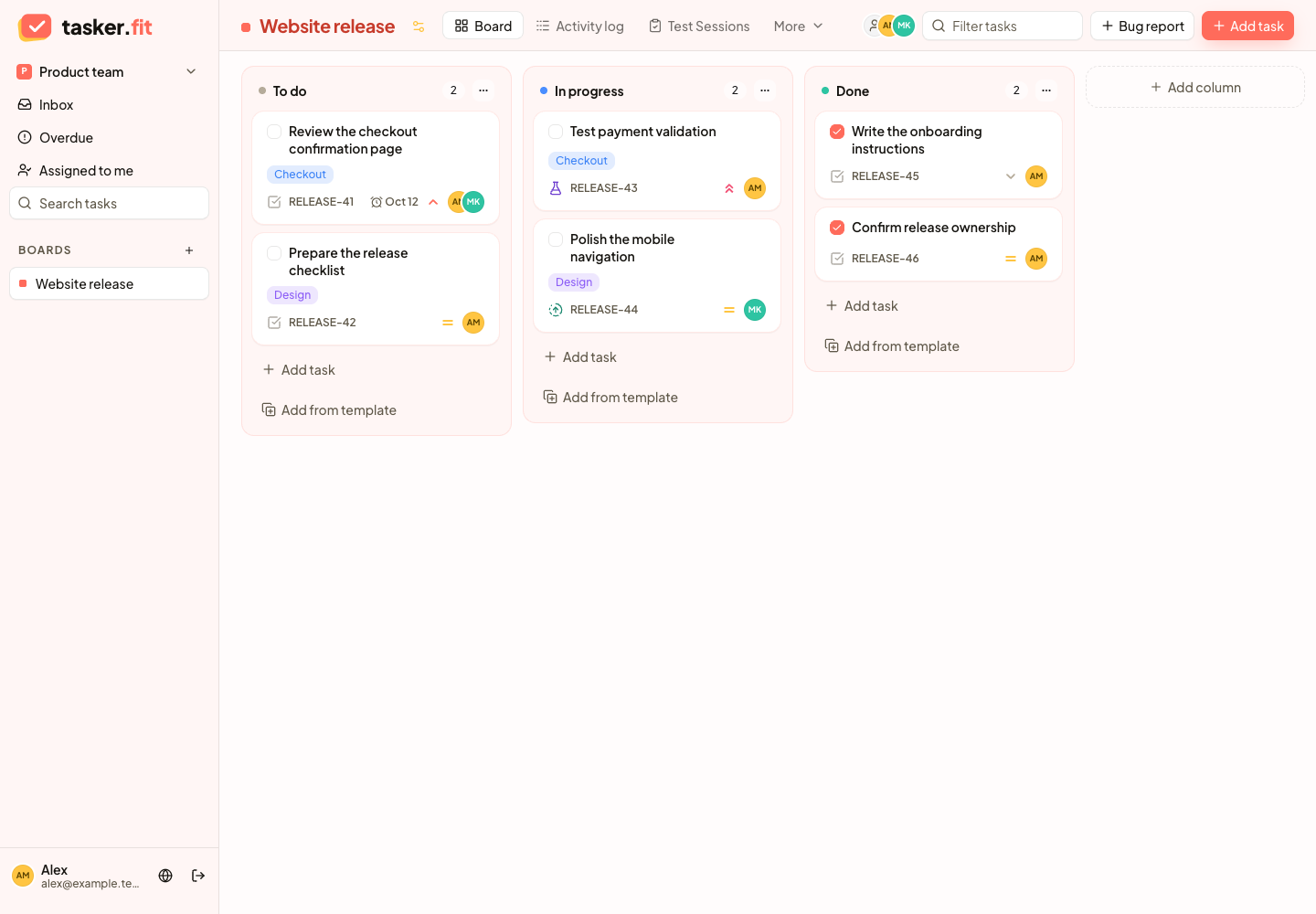
A Kanban board with assigned tasks, priorities, and tags
Actual Tasker.fit interface with fictional demo data. No production customer data is shown.
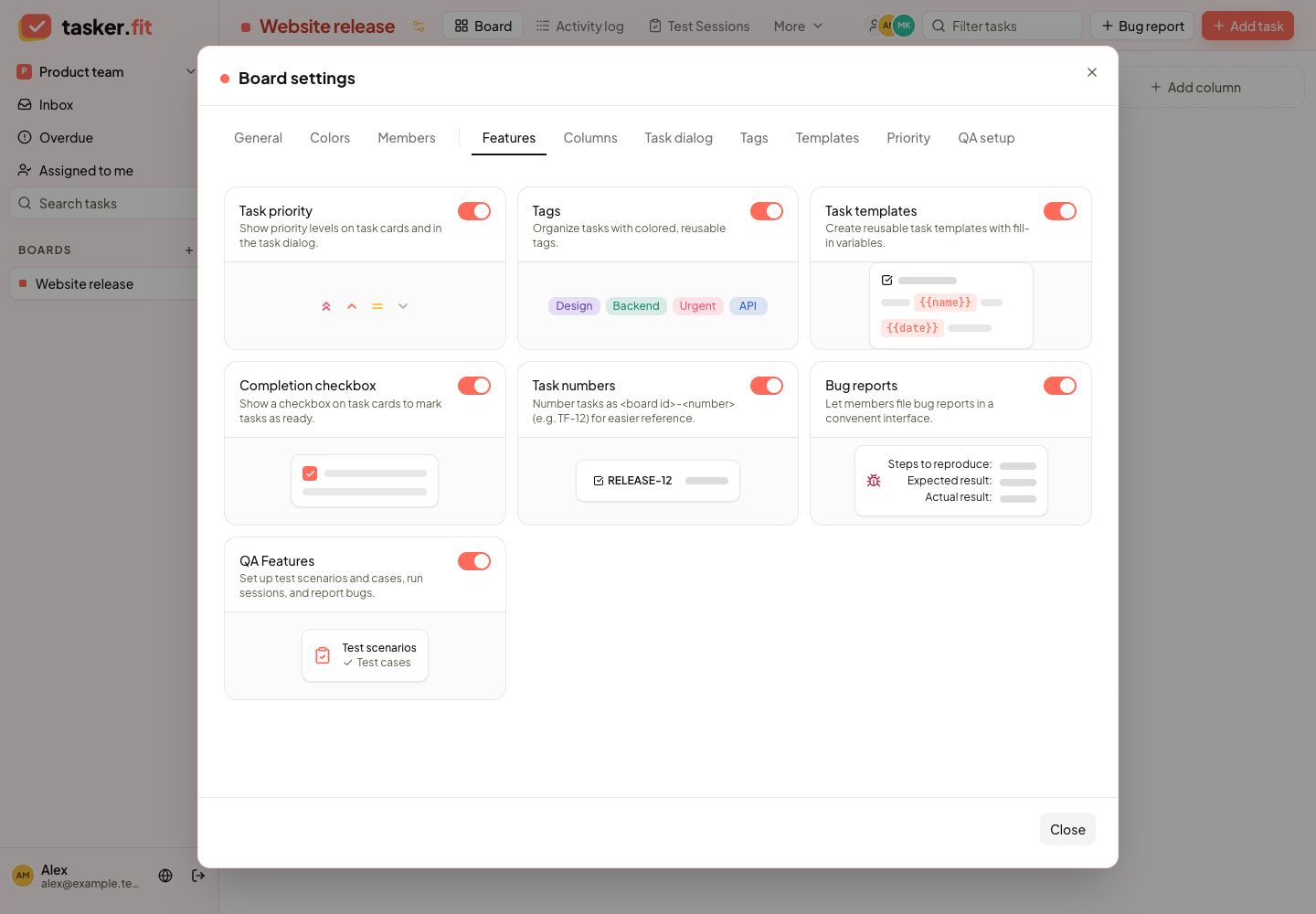
Enable the features your board needs
Actual Tasker.fit interface with fictional demo data. No production customer data is shown.
Feature reference
Kanban project boards
Organize work into columns on a Kanban board. Task cards show relevant details such as assignment, priority, dates, tags, and completion indicators when those board features are enabled.
Board creation
Create a board inside a workspace with a title, optional description, and color. The board provides a dedicated place to manage a project's tasks and workflow.
Board settings
Edit a board's title, description, identifier, status, and supported board type. Settings are available to users with board-management permissions.
Custom board identifiers
Set a readable board ID for application URLs and task-number references. This lets teams use project-specific identifiers when organizing and discussing work.
Board color themes
Choose a board theme from the available color palette. The selected color is reflected in board indicators, backgrounds, and related interface accents.
Active, archived, and closed boards
Set a board to Active, Archived, or Closed to reflect its lifecycle. The workspace overview separates active boards from boards that are no longer active, and the status can be changed through board settings.
Board deletion
Delete a board through a confirmation dialog when the user has permission. The interface explains that the board's tasks and columns will be permanently removed.
Custom workflow columns
Create and rename columns to match a team's workflow. Column settings also support removing columns through the available management controls.
Column workflow kinds
Assign columns the To Do, In Progress, Done, or Custom kind. These semantic kinds help the application interpret task status and support status filters across task views.
Column reordering
Reorder workflow columns by dragging them in board settings. The saved order determines how the columns appear on the board.
Drag-and-drop task movement
Move task cards between columns to change their workflow status. Dragging also updates card positions within the board's task arrangement.
Default task ordering
Choose how tasks are ordered within columns, including priority, due date, start date, creation date, update date, position, task number, or ID. The board stores its preferred ordering in column feature settings.
Full-height board columns
Enable a board setting that makes columns fill the available board height. This provides a consistent column layout even when columns contain different amounts of work.
Bulk column task archiving
Archive all tasks in a selected column from its management menu. This helps managers clear a completed or outdated workflow stage without archiving cards individually.
Optional board features
Enable or disable priorities, tags, templates, completion checkboxes, task numbers, standalone bug reporting, and QA features for each board. Teams can expose the tools they use and keep other controls out of their workflow.
Configurable task-detail layout
Arrange task description, comments, checklists, attachments, watchers, and activity modules in the task dialog. Modules can be placed in the top section, organized into tabs, or hidden, with their order controlled through a drag-and-drop layout editor.
Tips & troubleshooting
- The authenticated app's List and Calendar board views are currently placeholders. Use the Kanban board and workspace task overviews for available workflows.
- Archiving hides active work; deleting a board permanently removes its tasks and columns. Review confirmation messages before destructive actions.
Frequently asked questions
Why do cards return to a sorted order after I drag them vertically?
Manual vertical ordering is used when task ordering is Position. Priority, due date, and other sort options calculate their own order; dragging still moves tasks between columns.
Where can I find the List or Calendar view?
These authenticated board views currently show placeholders. Use Kanban for project workflows and workspace overviews for task lists.