Find tasks with search, filters, and personal views
Search across a workspace, filter a board by assignee, and use assigned, mentioned, and overdue task views.
Before you begin
Open a workspace that contains boards you can access. The overdue overview additionally requires a permitted management role.
Planning your workflow
Choose the search scope before adding filters. Workspace search is useful when you know the subject but not the board. Board search is useful when you already know the project. Assigned to me focuses on ownership, Inbox focuses on mentions and watching, and Overdue focuses on unfinished work whose due time has passed. Each view answers a different question about the same underlying tasks.
Start broad and narrow the results one filter at a time. Combining a board filter, task type, priority, and workflow kind can intentionally exclude most work, so clear filters when an expected task disappears. An assignee filter can include unassigned work alongside selected people. Search and filtering respect access permissions; they do not turn a private board into a public result.
Example
During a morning review, open Assigned to me, filter to your release board, and inspect high-priority work. Next open Inbox for questions directed to you. A manager can then check Overdue to identify missed deadlines across the workspace.
Step-by-step tutorials / 1
Find a task across projects
Select the workspace in the sidebar and open its search dialog.
Enter a task name, number, or relevant phrase. Workspace search also considers descriptions and comments.
Select a result to open the task with its board context. On an individual board, use its toolbar search and assignee controls for a narrower view.
What to expect: You can reach a task without browsing every board manually.
Step-by-step tutorials / 2
Review your work and missed deadlines
Open Assigned to me to see your tasks across the workspace. Use search and board, priority, type, or workflow-status filters.
Open Inbox to review watched tasks and comment mentions, and select a row to open its task.
If you have management access, open Overdue and filter the incomplete work with passed due times. Update ownership or deadlines from the relevant task.
What to expect: Personal and management views show the work that needs attention.
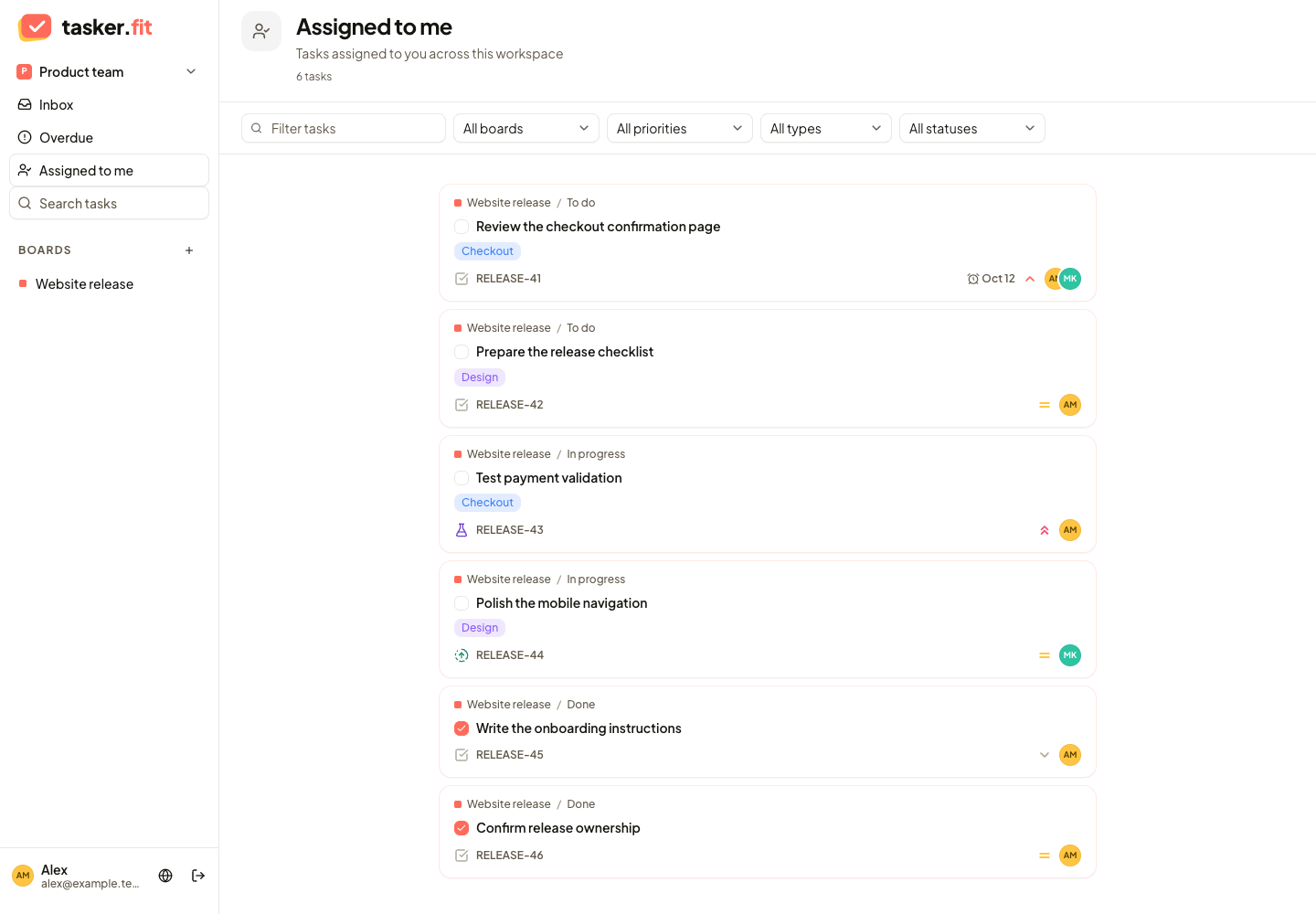
Review tasks assigned to you
Actual Tasker.fit interface with fictional demo data. No production customer data is shown.
Feature reference
Workspace-wide task search
Search tasks across accessible boards in a workspace using the sidebar search dialog. The backend supports matching task names, descriptions, comments, IDs, and task numbers, helping users find work without opening each board.
Board task search
Search tasks within the current board from its toolbar. The board updates its task list as the search text changes.
Board assignee filters
Filter a board by selected assignees, yourself, or unassigned work. Filters can be combined to focus on a person's responsibilities while keeping unassigned tasks visible when selected.
Assigned-to-me task overview
View tasks assigned to the signed-in user across a workspace's boards. The overview includes search and filters for board, priority, task type, and workflow status.
Mention and watcher Inbox
View workspace tasks where the user is a task watcher or has been mentioned in a comment. The Inbox presents related tasks together and provides search; it is not an unsorted quick-capture task queue or a read/unread notification center.
Overdue task overview
Review non-archived tasks whose due time has passed and that have not been completed. Authorized workspace managers can search overdue work and filter it by board, priority, task type, and workflow status.
Tips & troubleshooting
- Inbox means tasks you watch or where a comment mentions you. It is not a place to capture unsorted tasks.
- Search only exposes tasks available to your account. If a task is missing, check workspace and board access as well as filters.
Frequently asked questions
Why does Inbox contain tasks rather than notifications?
It is a task overview based on watchers and comment mentions. It does not currently maintain read/unread notification states.
Why can I not see the Overdue view?
The workspace overdue overview is restricted to permitted management roles. Check your role with the workspace owner or administrator.